Desktop
Desktop on Open OnDemand (OOD) provides a virtual Linux desktop in your web browser. The desktop runs on an allocated compute node and is displayed through VNC, making it useful for graphical user interface (GUI) applications that need compute resources.
Use a desktop session when you need to run GUI software that is not available as a dedicated OOD app, or when you want a more general interactive desktop environment for launching graphical tools.
Launching a Desktop Session
- From the
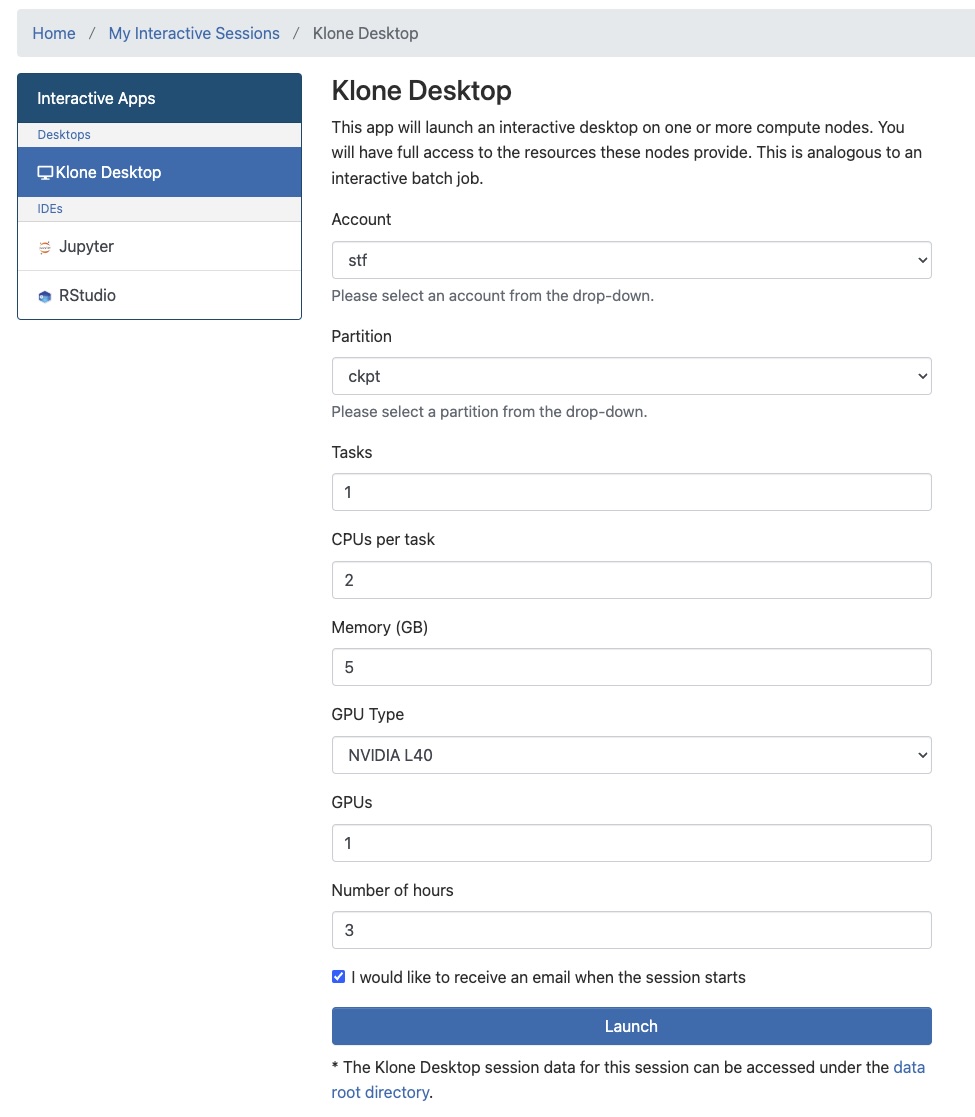
Interactive Appsmenu, select the Desktop app. - Fill out the submission form for Desktop session.
- Click
Launch.
A form submission for a desktop session may look like this:
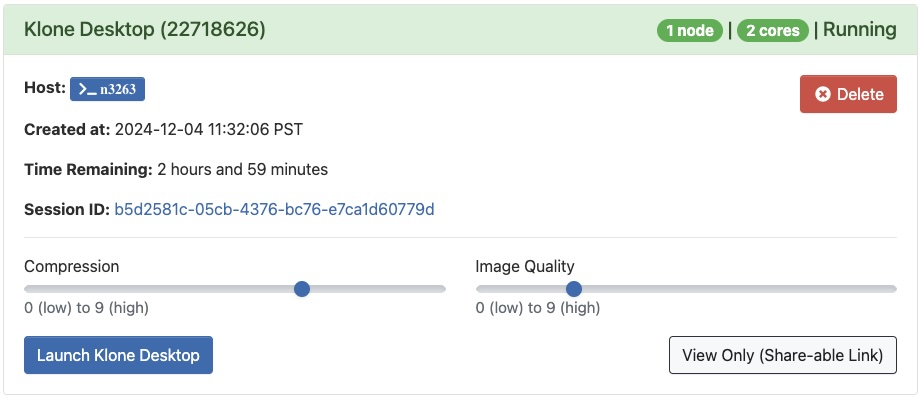
The session will appear on the My Interactive Sessions page. Allocation of resources might take a few minutes, depending on the queue and requested resources.
Connecting with VNC
Once the session is running, click Launch Desktop to open the virtual desktop in your browser. OOD displays the session through VNC, and the desktop is running on the compute node.
Within the desktop, you can open a terminal or application menu and launch GUI programs available in the session environment. If your application requires a software module, open a terminal inside the desktop and load the module before starting the application. For example,
module load matlab
matlab
If prompted for matlab license, please find instructions here.
Closing the browser window does not terminate interactive sessions. Make sure to end your session by clicking Delete on the My Interactive Sessions tab after saving your work.
Logs and Troubleshooting
Once a job is queued, it is assigned a Session ID. You can monitor job output by clicking on the hyperlinked ID (e.g., 6adb157f-9d7e-4a60-b536-32e1e7ff101d), which navigates to the output directory. You can find generated files, logs, and information about the job here.