Storage
On Tillicum, storage is physically separate from computation nodes. It’s mounted so every node in the cluster can access it under /gpfs/.
You’ll often hear Tillicum storage referred to as "GPFS", which stands for General Parallel File System — IBM’s high-performance, cluster-wide filesystem. It allows all compute nodes to read and write to the same shared data simultaneously with very high throughput.
So whenever you see a path like:
/gpfs/home/UWnetID
that means you’re accessing your home directory on the GPFS storage system, not a local disk on the login node.
The Filesystem
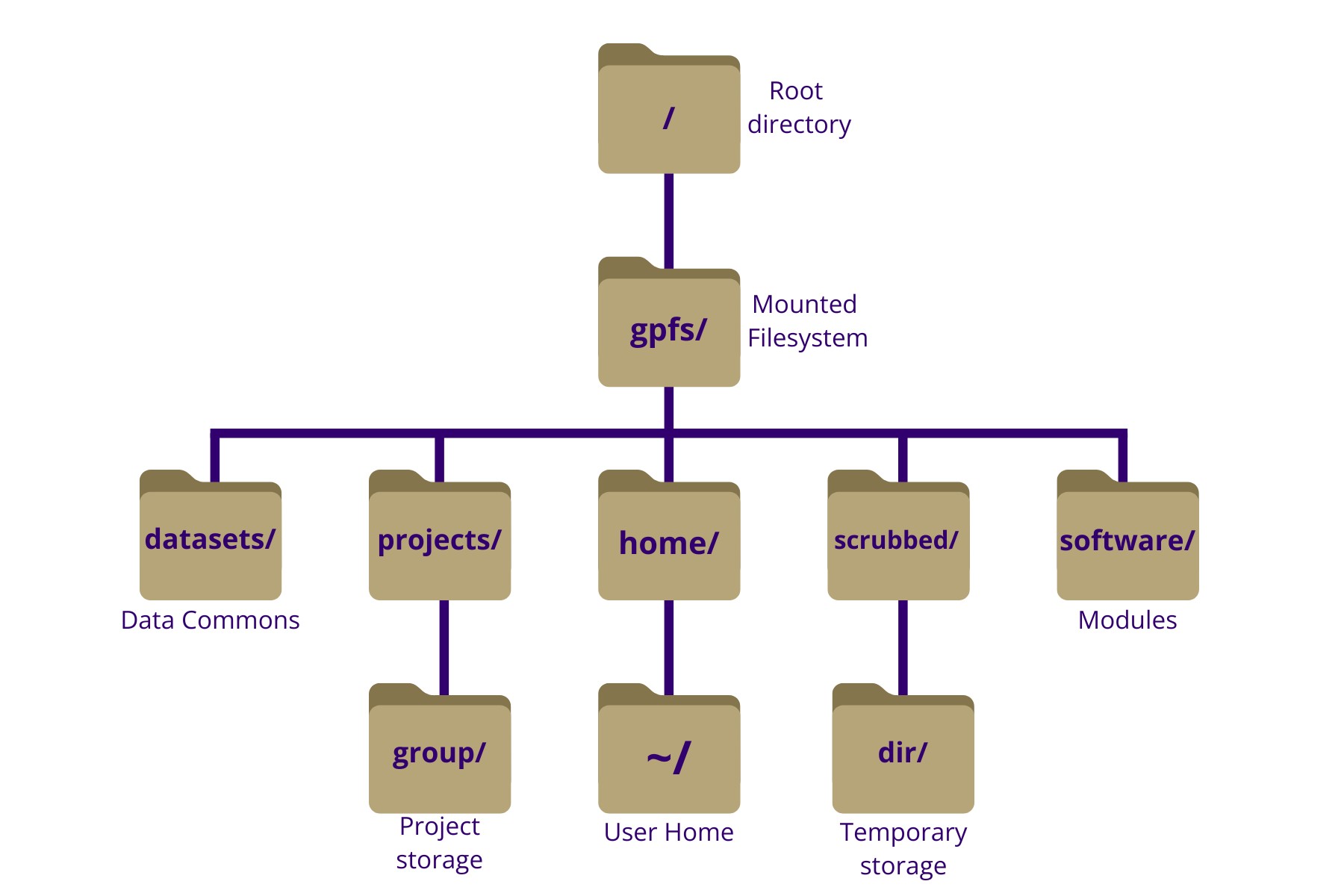 Diagram - truncated view of the Tillicum filesystem. Above the directory
 group/ is meant to represent any research group and the directory dir/ is meant to represent any directory.
As shown above, the Tillicum filesystem is organized under the root directory /. Within it, /gpfs/ contains several key subdirectories:
home/— individual user home directories for configuration and small files.software/— centrally managed shared applications and tools.datasets/— curated public or shared research datasets. We have a process by which groups can nominate datasets for storage under our Data Commons.scrubbed/— temporary scratch space for active work, periodically cleaned.projects/— long-term storage for groups and project-specific data.
User Storage
Every user on Tillicum has access to three key storage spaces mounted under /gpfs/ where they can write and read files:
- Home directory (
/gpfs/home/UWNetID)— personal, backed-up storage - Project/lab dedicated storage (
/gpfs/projects/group-name) — shared, backed-up storage for research groups - Scrubbed storage (
/gpfs/scrubbed/some-directory) — large, temporary scratch space for active computation
Here’s a quick overview of Tillicum storage policies:
| Storage | Size / Quota | Backup | Notes |
|---|---|---|---|
| Home Directory | 10 GB per user | Daily snapshots | Keep only configuration files here; use other spaces for data/code |
| Project/Lab Storage | 1 TB per project/lab | Daily snapshots | Request allocation via Tillicum intake form |
| Scrubbed Storage | Up to 100 TB per user | None | Scratch space, purged after 60 days of inactivity; not for long-term storage |
Tillicum is a new service. We will constantly evaluate these storage policies based on user feedback.
Users are responsible for transferring results to external systems (e.g., Kopah S3 or Lolo Archive)
- AUTO-DELETE: Files not accessed for 60 days in Scrubbed will automatically be deleted.
Attempting to circumvent the auto-delete policy violates our usage policy and is against the spirit of Scrubbed as a community resource.
- 100TB INDIVIDUAL LIMIT: The 100TB per-user limit is not guaranteed. Scrubbed is a shared space with a large quota, and heavy use by a few users can affect accessibility for others. This is the main reason for the auto-delete policy.
- PRIVACY: Writes to Scrubbed are public by default, it is the responsibility of the individual researcher to lock down anything they wish to use in Scrubbed.
Please note the Scrubbed permissions are completely open by default so use Linux group changes and modifications to restrict access as appropriate.
Storage Monitoring
The user tool hyakstorage is available on Tillicum and provides users with an individual or group storage summary. On Tillicum hyakstorage reports are updated every hour.
hyakstorage

#group summary
hyakstorage -g
To monitor and investigate storage usage in real time, use the following command, which will show you how much storage is occupied by each subdirectory in the directory where the command is executed. If you are cleaning up storage, this command will show new storage counts as changes are made.
du -h -d 1
Storage Snapshots
User home directories and project directories have daily snapshots taken at midnight local (Seattle) time. Only 7 daily snapshots are kept. The snapshots are kept under /gpfs/home/.snapshots and /gpfs/projects/<projectname>/.snapshots for home and projects, respectively. Each snapshot folder is named by the date and time they were taken. Since these snapshot folders are named by the date and time, you will see different output when you review the snapshot directory.
$ ls -alh /gpfs/home/.snapshots
total 85K
dr-xr-xr-x   6 root root 8.0K Oct 20 17:00 .
drwxr-xr-x 139 root root 8.0K Oct 22 16:23 ..
drwxr-xr-x 132 root root 4.0K Oct 16 15:57 @GMT-2025.10.17-17.38.07
drwxr-xr-x 132 root root 8.0K Oct 16 15:57 @GMT-2025.10.18-00.00.07
drwxr-xr-x 133 root root 8.0K Oct 18 14:48 @GMT-2025.10.19-00.00.07
drwxr-xr-x 135 root root 8.0K Oct 19 12:36 @GMT-2025.10.20-00.00.07
drwxr-xr-x 136 root root 4.0K Oct 20 15:32 @GMT-2025.10.21-00.00.07
drwxr-xr-x 136 root root 4.0K Oct 20 15:32 @GMT-2025.10.21-22.41.07
drwxr-xr-x 136 root root 8.0K Oct 20 15:32 @GMT-2025.10.22-00.00.07
drwxr-xr-x 139 root root 4.0K Oct 22 16:23 @GMT-2025.10.23-00.00.07
$
For example, if my netID is npho and I wanted to check the oldest snapshot available of my home directory that is /gpfs/home/npho then I would look in /gpfs/home/.snapshots/@GMT-2025.10.17-17.38.07/npho/. Within this snapshot directory I could copy out any previously deleted or modified files to my current home directory (or any other non-snapshot location) to recover.
Similarly, if my project name is hyakteam then I could review available project snapshots like so.
$ ls -alh /gpfs/projects/hyakteam/.snapshots
total 9.5K
dr-xr-xr-x 6 root root     8.0K Oct 20 17:00 .
drwxrws--- 3 root hyakteam 4.0K Oct 15 09:47 ..
drwxrws--- 3 root hyakteam 4.0K Oct 15 09:47 @GMT-2025.10.17-17.38.07
drwxrws--- 3 root hyakteam 4.0K Oct 15 09:47 @GMT-2025.10.18-00.00.07
drwxrws--- 3 root hyakteam 4.0K Oct 15 09:47 @GMT-2025.10.19-00.00.07
drwxrws--- 3 root hyakteam 4.0K Oct 15 09:47 @GMT-2025.10.20-00.00.07
drwxrws--- 3 root hyakteam 4.0K Oct 15 09:47 @GMT-2025.10.21-00.00.07
drwxrws--- 3 root hyakteam 4.0K Oct 15 09:47 @GMT-2025.10.21-22.41.07
drwxrws--- 3 root hyakteam 4.0K Oct 15 09:47 @GMT-2025.10.22-00.00.07
drwxrws--- 3 root hyakteam 4.0K Oct 15 09:47 @GMT-2025.10.23-00.00.07
$
Similarly, I could navigate the oldest copy of the state of my project directory by going to /gpfs/projects/hyakteam/.snapshots/@GMT-2025.10.17-17.38.07/ and copying out any files I need to recover.